Traveling Abroad with Your CU Device

Understand the steps to secure your device before, during and after international travel.

Before You Travel

Prepare your device and data for secure international travel.

1

Request a University-Issued Loaner Device

Before traveling abroad, request a university-issued loaner device rather than taking your primary university computer. Traveling with a loaner device is a simple step that helps ensure continuity and reduce risk during international travel. In some countries, travelers may be required to unlock devices, disclose passwords, or allow inspection of device contents, and devices may be held temporarily. Using a loaner reduces impact to your primary workstation and daily operations by: 

  • Minimizes disruption: Your primary device and access to daily work remain unaffected if a device is lost, delayed, or inspected.
  • Reduces operational impact: Avoids downtime if a device is held or confiscated.
  • Provides a travel-ready device: Loaners are configured for temporary use with only necessary access.
  • Simplifies recovery: Devices can be quickly replaced or reset after travel with minimal impact.

When traveling with a loaner device, you will be able to access university resources, such as Microsoft Office (Outlook, Teams, OneDrive), Zoom, web browsers and other common productivity applications through a remote desktop connection.

To request a university-issued loaner device, work with your respective IT department.
2

Encrypt Your Device and Protect Data

  • Prior to traveling, be sure that your device is encrypted and remove or reduce data that you store on your device to only that which is needed to perform job duties. Reducing the amount of data could also reduce the amount of risk associated with traveling with the device.
  • Encrypt files and data for additional protection. This will help to prevent viewing and use of the data in the event your device is accessed in an unauthorized manner, or by someone other than yourself.  It also protects the data from being used in violation of university policies and federal laws such as HIPAA and FERPA that restrict this data to specific use and require authorization. Note: Data reduction or removal should be done in accordance with university records retention policies and applicable federal, state, local laws, and contractual obligations.
  • Make a secure backup copy of your data before your travel and leave the copy in a safe university provided storage location. This will ensure that the copy is available if data are corrupted or become inaccessible while you travel.
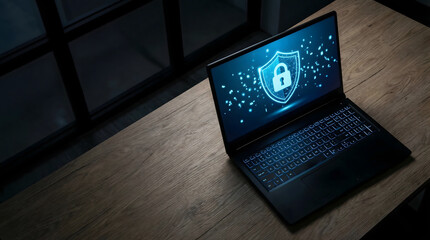
Modern laptop displaying a glowing digital security shield and padlock on its screen on a wooden table
3

Install and Use the University VPN

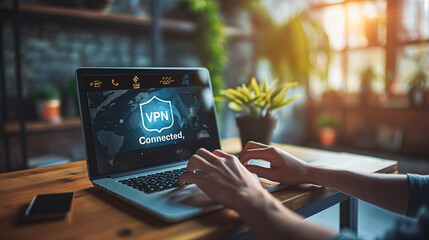
Other countries have different web governance rules and restrictions. To ensure a safe and secure internet connection and that you will be able to access university resources, make sure the device you are traveling with has the VPN (called Global Protect) installed. Global Protect will secure your internet connection wherever you are. We recommend you request VPN access at least one week prior to traveling.

Image of laptop on a desk with
Request VPN Access
4

Use Duo Multi-Factor Authentication

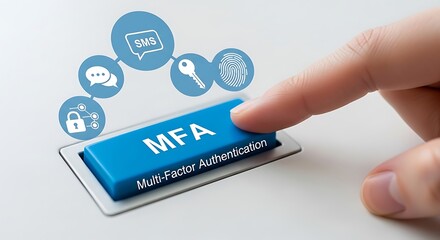
In order to connect to Global Protect (VPN), ensure that your mobile service provider offers international service. You will need the service to connect to the VPN because the VPN uses multi-factor authentication (MFA), a safeguard to confirm your identity and verify you are the person signing into the university service. Make sure to install Duo, the university's MFA tool, prior to your trip. As a security best practice, you should enable MFA on all your accounts to prevent them from being compromised.
Image of a keyboard button that says
Register for DUO
5

Learn About Export Control Laws

Some types of technology cannot be taken abroad, so it is important for you to understand United States Export Control Laws.

Recent updates to Hong Kong’s National Security Law make it a criminal offense to refuse to provide passwords or decryption assistance for electronic devices, including laptops and mobile phones. This law applies to all travelers—including those in transit—and authorities may seize devices they believe are linked to national security concerns. Faculty, staff, and students should take precautions by limiting sensitive data and following university guidance when traveling abroad. Learn more on the US Consulate's website.

Image of metal plank with
Office of Regulatory Compliance Guidance on Traveling Abroad with a CU Device
6

Make Sure Your Software is Up to Date

Check each application on your device to ensure that the latest patches and updates are applied and installed prior to travel.  Patch and update software that is not running the latest version or is not current.  Out-dated software can be hacked, which could allow an attacker to gain access to your device and its data. Learn more about the importance of patching personal devices.
Image of a software update (shown via gears and progress bar) happening on an ipad, behind held by a person's hands.
7

Use Microsoft Defender Software to Detect Malicious Code and Threats

Whether the university device is a loaner or your personal work device, make sure Microsoft Defender is installed on the computer before traveling. Run a full scan of your device before you leave to ensure that there is no malicious code or software that is designed to damage your computer, prevent it from operating appropriately, or allow unauthorized access to your device and data (malware) installed on the device.  Microsoft Defender identifies software vulnerabilities, provides antivirus and anti-phishing protection, and detects threats in a single, unified platform. The platform integrates with Microsoft 365 services such as Outlook, SharePoint, and OneDrive, offering robust security. One of the major capabilities of Microsoft Defender is the detection and response functionality which continuously protects computers from malicious activity. This program will help defend against threats while abroad.
Image of laptop with a shield icon on it and
Access Microsoft Defender
8

Prepare for International Security

Be prepared for your device to be searched or inspected when traveling to other countries.  It is also not uncommon to be questioned about your device.  Privacy laws in other countries are different as they do not adhere to protections such as those identified in HIPAA and FERPA.  Be aware of export controls laws, and do not access sensitive data even while using the VPN if you feel that your connections are not secure.
Image of the globe with light hotspots being shown in different cities
Office of Regulatory Compliance Guidance on Traveling Abroad with a CU Device

While You Travel

Protect your device during your travel.

1

Avoid Public Wi-Fi

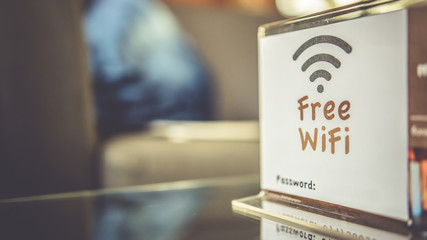
Do not connect to a public wifi network or public hotspots with your university owned device while traveling, such as those found on airplanes, in airports, hotels, train and bus stations, and cafes. And, do not use public wifi to conduct other activities such as personal shopping, banking, or other sensitive activities.

Public wifi and networks are un-secure and unreliable. Connecting to a public network increases the risk of your device being attacked by a hacker, and could lead to identity theft. It is an easy way to cause a breach of data security and for sensitive information to be obtained by an unauthorized user.  Instead of connecting to public wifi, use the service provided by your cellular carrier.
Image of stand on table with a card that reads
2

Protect Data

Do not download files or data to your university device while you travel.  Also, do not accept or use thumb drives or media from other sources as they may be infected with malware.
Digitally rendered broken chain with warning signs floating in a blurred background
3

Disable Bluetooth

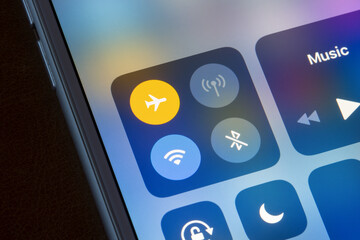
Disable Bluetooth on your device to ensure that it does not automatically connect to nearby devices or computers.  Re-enable Bluetooth only when you are certain that you are connecting to a safe device.
Bluetooth is seen disabled on iPhone with Wi-Fi switched on at the same time.
4

Use Physical Safeguards

To prevent your university owned device from being stolen, implement the physical safeguards:

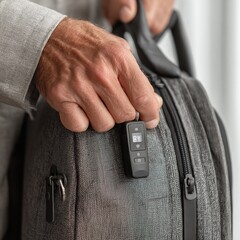
  • When traveling, make sure that your device is safely secured in your bag. If you don’t need to carry your device around with you make sure that your device is locked up either in the safe provided in your room or in luggage with a lock on it.
  • Never leave your device unattended.
  • Use a privacy screen to ensure that no one can shoulder surf or view the information on your monitor.
  • Never charge your device using publicly available charging cables or publicly available USB ports. Cables provided in public locations may be targeted by attackers to transfer the information that you send to their unauthorized networks or systems.
  • Do not use publicly accessible computers.
Image of backpack with a lock on it

When You Return 

Safely restore access and secure your device after returning.

1

Assume Potential Exposure

Devices may have been accessed, inspected, or connected to untrusted networks. Treat them as potentially compromised. International travel can expose devices to elevated risk, even without obvious signs of compromise.
2

Return University-Issued Loaner Device

If you used a university-issued loaner device, return it to IT for a secure wipe and rebuild before it is used again.
3

Clean or Scan Your Device

When you return from travel, use Microsoft Defender to run a scan against your computer to check for malware or other malicious code infection. If any issues are identified, follow recommendations for remediating them.
Image of laptop with a shield icon on it and
Access Microsoft Defender
4

Reset Your Password

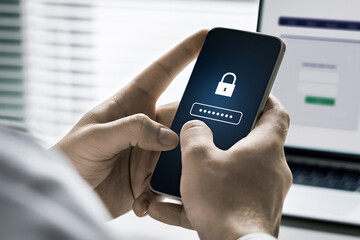
Change your password to a value that is unknown to others when you return from travel.  This will ensure that your device and files can only be accessed by you.
Photo of person holding mobile phone with a password lock on it
Reset Your Password
5

Verify and Protect Your Data

Ensure no sensitive data remains on the device and confirm information is stored only in approved systems.

6

Report Concerns Immediately

If your device was lost, inspected, confiscated, or you were asked to provide access, report it so appropriate actions can be taken.

Report a Security Incident

Report a Security Incidence

If your device is lost, stolen or you suspect that it has been compromised, notify the Service Desk immediately.

Information Strategy and Services

CU Anschutz

Fitzsimons Building

13001 East 17th Place

Aurora, CO 80045


CMS Login