
The Junction

A hybrid workspace for central services employees on the CU Anschutz campus.
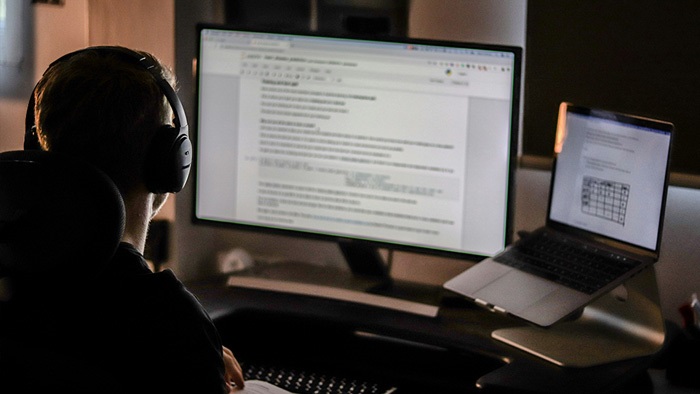
Hybrid Workspaces Ready to Use

Service Desk Employee

Workstations and Landing Zones

The Junction is a space in the Fitzsimons building on the CU Anschutz campus that is available to hybrid central services employees for on-campus work. There are private offices and open workspaces with a combination of workstations (computer provided) and landing zones (for use with a laptop).

Conference rooms are available and fully equipped with Zoom to facilitate hybrid conference calls. Technical support for the Junction is provided by ISS and AV services.

Image of a tablet with an online room scheduler on the screen.

Scheduling a Junction Workspace

Junction workstations and landing zones are booked using EMS. Workstations can be reserved directly from their corresponding scheduler panels. To schedule using a corresponding panel, simply tap the panel and enter your username to reserve a time. Reservations may be canceled from the panel while they are underway. Otherwise, changes must be made using the EMS Web App. 

Learn how to reserve a space in EMS. 


When you arrive:

  • Make sure a workstation is not in use before logging in
  • Log into your profile using your University ID and Password
  • Lock your computer if you need to get up and are returning shortly (within 10 minutes or less) to ensure security compliance
  • Your University ID and Password access the following:
    • Outlook
    • Teams
    • OneDrive
    • Adobe Acrobat – Creative Cloud Acrobat license required; if you have not been provisioned a license, please visit the Adobe webpage for assistance.

When you leave:

  • Please log off from the Windows Start Menu after saving any work to ensure data security
  • Log off if you are going to be away for more than 10 minutes so other users can utilize the workstation

When you arrive:

  • Connect your laptop to the USB-C cable provided
  • If your display is not arranged correctly, right-click on the desktop and select “extend the desktop to this display” under the “Multiple displays” heading


When you leave:

  • Simply unplug your laptop from the USB-C cable

Working at the Junction:

  • When using open landing zones or workstations, please use a headset or headphones to avoid disturbing others
  • Log off to leave workstations available to the next user
  • When leaving for a short time (10 minutes or less), lock your session to secure your work
  • Please keep your area clean – scan for trash and personal items before leaving

Workstation Tips

Information technology images

To add printers to your available queue, type \\enzo\junct-prn1  (for the Junction Floor 1 printer) or \\enzo\junct-prn2 (for the Junction Floor 2 printer) into the Windows search field. This will automatically set up the respective printer on your workstation or laptop.
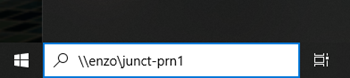
Screenshot of the printer name.

Color printing is available from the first floor printer; floor 2 is black and white only.

If your display is not arranged correctly, right-click on the desktop and select “Display settings”, then select “extend the desktop to this display” under the “Multiple displays” heading:
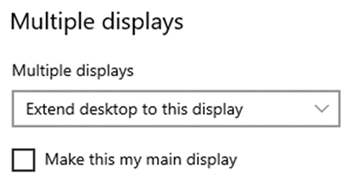
Screenshot of the multiple displays menu.

From the “Display settings” window, select “Identify” under the “Rearrange your displays” heading and drag the tiles into the preferred arrangement. Closing your laptop lid will result in two available monitors instead of three. 
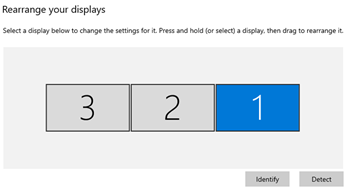
Screenshot of three monitor boxes with numbers to rearrange the display order in settings.

Request Support  

If you need IT assistance while using a workspace at the Junction, please submit a ticket or call the Service Desk at 303-724-4357 (4-HELP from a campus phone).

Shared workspace at Fitzsimons

For employee resources for Financial Services, Budget & Strategy and the Office of the Vice Chancellor for Research, as well as more information about using the Junction space, click the Learn More button. 

Information Strategy and Services

CU Anschutz

Fitzsimons Building

13001 East 17th Place

Aurora, CO 80045


CMS Login