Tools & Services

Browse tools, software and programs that have been vetted by our security and compliance team and are supported by our service desk.

Multi-Factor Authentication (MFA) with Duo

Category: IT Security Remote Access Software Audience: Faculty Researchers Staff Students
Staff, faculty and students are required to enroll a device in multi-factor authentication (MFA) with Duo to help strengthen security by providing two proofs of your identity.
Register for MFA with Duo

Welcome to Duo

Multi-factor authentication (MFA) with Duo must be used with:  
  • VPN - GlobalProtect is the university's virtual private network (VPN)
  • VDI - VMWare Horizon allows employees access to university resources through a remote desktop
  • Microsoft 365 applications including Outlook for university email whether you are off-campus or on-campus
  • Employee and student portals at my.cu.edu

Important Duo App Update - 3/31/2026

  • Please make sure you are running these minimum requirements on your device in order to continue using Duo Push.
  • Users who do not meet the minimum requirements on their devices will see an alert on their Duo App notifying them that they need to update.
  • If you need any assistance with updating your device, please contact your IT professional or the Service Desk.

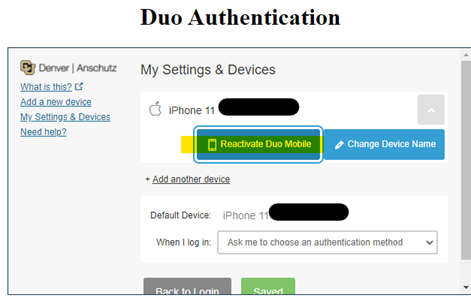
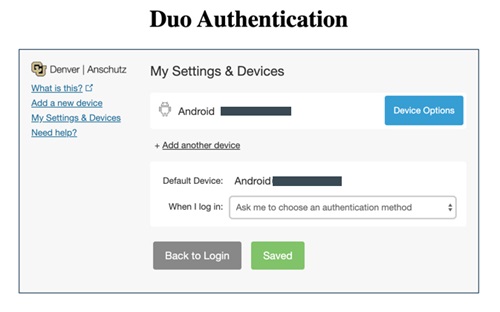
Install and Register for Duo

  • Download the Duo app on your preferred mobile device. OIT highly recommends doing this on your smartphone.
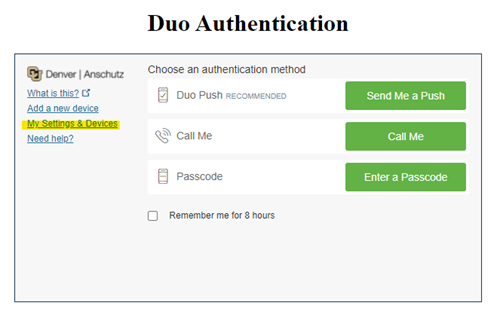
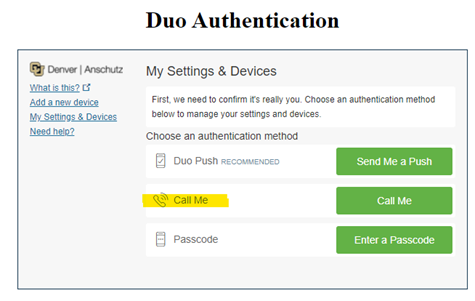
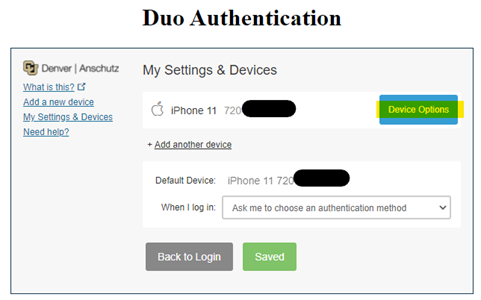
  • Register for Duo from your laptop or desktop computer.
    • In your browser, type in: https://myaccount.ucdenver.edu/cusecure and click enter.
    • Remove your university email address and type in your user name.  
    • Be sure to log in using your university username (not your email address) and your password.
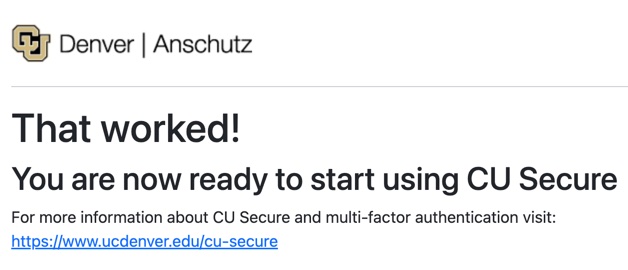
    • The Duo Authentication “Start setup” message will appear. If you're already registered for Duo, you'll receive a ready to start using CU Secure message.

    CU Secure ready to start message

    • Troubleshooting: If you have an issue accessing the https://myaccount.ucdenver.edu/cusecure link, clear your browser data, then close your browser and reopen a new session. You must enter your user name (generally your last name and first initial or a combination of your last and first name). If you are still experiencing issues, please contact the Service Desk. 

Training Resources

Getting Started

Frequently Asked Questions

H2 here, starting a main section.

Main sections in this template are separated by 10px, colored padding widgets. Integer ut facilisis felis. Integer porta felis odio. Sed venenatis nibh ex, faucibus facilisis nisl euismod vel. Sed blandit aliquam nibh rhoncus malesuada.

Sed venenatis nibh ex, faucibus facilisis nisl euismod vel. Sed blandit aliquam nibh rhoncus malesuada

This is really important.

Sed venenatis nibh ex, faucibus facilisis nisl euismod vel. Sed blandit aliquam nibh rhoncus malesuada.

Sed venenatis nibh ex, faucibus facilisis nisl euismod vel. Sed blandit aliquam nibh rhoncus malesuada

Click this link if you want to see something cool.

[tab 2 content - click edit to update]

Another H2 here, starting a new main section.

Let's do four columns this time. Main sections in this template are separated by 10px, colored padding widgets. Individual line items are separated by 1px padding widgets. Integer ut facilisis felis. Integer porta felis odio. Sed venenatis nibh ex, faucibus facilisis nisl euismod vel. Sed blandit aliquam nibh rhoncus malesuada.

Go ahead and click this

A calm, rocky mountain stream in Winter.

This is just an H3 to start a subsection.

Donec aliquet pulvinar felis, sit amet tempor orci lobortis eu. Duis sit amet metus efficitur, ornare risus nec, iaculis nunc. Suspendisse ut vehicula quam, vitae vehicula nisi.

Let's get something started here

Information Strategy and Services

CU Anschutz

Fitzsimons Building

13001 East 17th Place

Aurora, CO 80045


CMS Login