Tools & Services

Browse tools, software and programs that have been vetted by our security and compliance team and are supported by our service desk.

Directory Listing and User Account Update - CU Anschutz

Category: Email Marketing and Communications OIT - Categories OIT - Type of software Audience: Faculty Researchers Staff Students
The university campus directory website will be sunsetted on Thursday, April 10, 2025. There are several ways to update your university directory information and user account. Scroll down for details on how to change your legal name, email address and preferred first name as well as using the People Search function within Microsoft 365.

Please note, the university campus directory website (directory.ucdenver.edu/) will be sunsetted on Thursday, April 10, 2025. If your legal name has changed or you need to update your email address, contact the OIT Service Desk to help with your user account. To change your preferred first name option, visit the CU Anschutz Human Resources website.

The People Search function within Microsoft 365 integrates with various tools, including Outlook and Teams, to provide directory and name search capabilities. You can enter the name of the person you are looking for in Teams to access the contact card. Additionally, the following Microsoft Outlook options are available:

Outlook Webmail
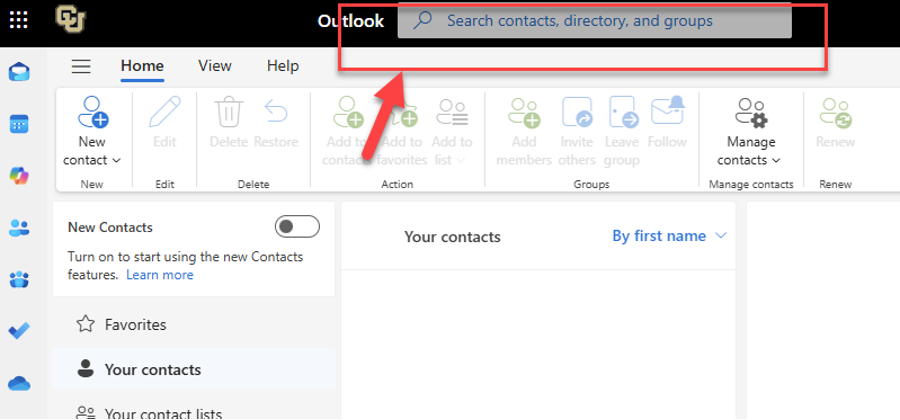
  • Go to Outlook people search
  • Using the top search bar in the menu, search for the name you are looking for:

image of outlook for web

  • Select name from the list and the following information will appear: Name, Email, Phone, Location, MailStop, Organizational Information

Outlook for PC Desktop (be sure you are using the most recent version)
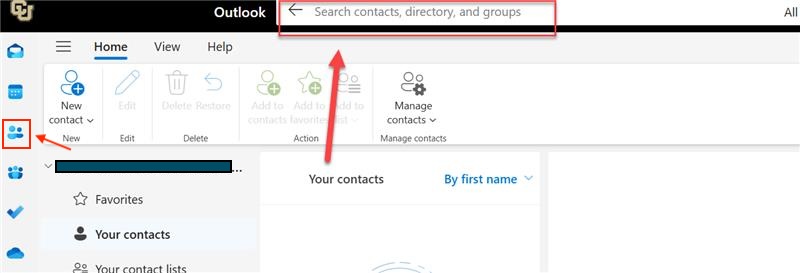
  • Select the "people" icon from the left-hand navigation bar, then enter in the name you're looking for in the search bar at the top of the menu:

Outlook search image

  • Select name from the list and the following information will appear: Name, Email, Phone, Location, MailStop, Organizational Information.

Outlook for Mac Desktop (be sure you are using the most recent version)

  • Go to "Search" in the top menu bar to search the name you are looking for:

image for Outlook for Mac

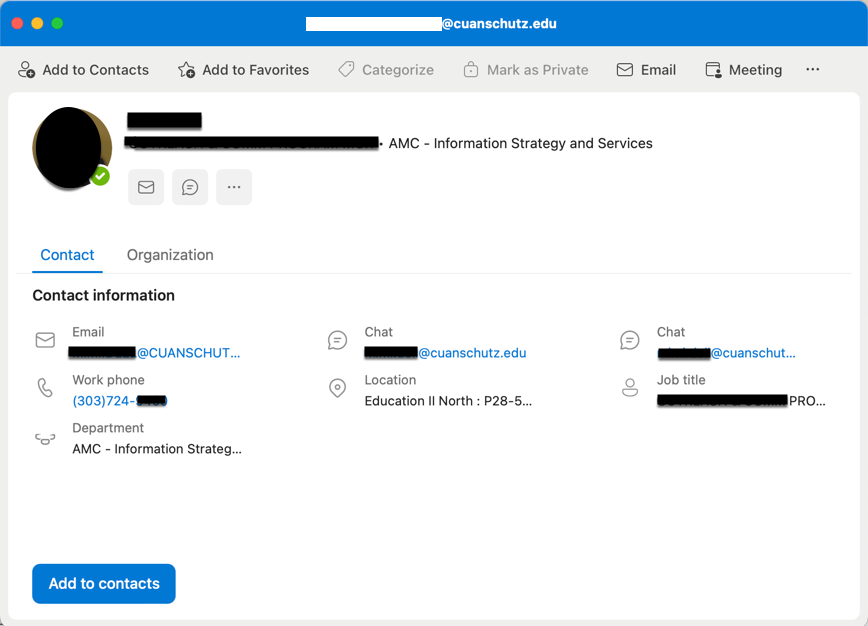
  • When the name appears, click on the "View Contact" card to the right to see contact information including: Name, Email, Phone, Location, MailStop, Organizational Information.

Sample contact card

Example directory image

Please contact the OIT Service Desk if you need additional assistance.

Frequently Asked Questions

H2 here, starting a main section.

Main sections in this template are separated by 10px, colored padding widgets. Integer ut facilisis felis. Integer porta felis odio. Sed venenatis nibh ex, faucibus facilisis nisl euismod vel. Sed blandit aliquam nibh rhoncus malesuada.

Sed venenatis nibh ex, faucibus facilisis nisl euismod vel. Sed blandit aliquam nibh rhoncus malesuada

This is really important.

Sed venenatis nibh ex, faucibus facilisis nisl euismod vel. Sed blandit aliquam nibh rhoncus malesuada.

Sed venenatis nibh ex, faucibus facilisis nisl euismod vel. Sed blandit aliquam nibh rhoncus malesuada

Click this link if you want to see something cool.

[tab 2 content - click edit to update]

Another H2 here, starting a new main section.

Let's do four columns this time. Main sections in this template are separated by 10px, colored padding widgets. Individual line items are separated by 1px padding widgets. Integer ut facilisis felis. Integer porta felis odio. Sed venenatis nibh ex, faucibus facilisis nisl euismod vel. Sed blandit aliquam nibh rhoncus malesuada.

Go ahead and click this

A calm, rocky mountain stream in Winter.

This is just an H3 to start a subsection.

Donec aliquet pulvinar felis, sit amet tempor orci lobortis eu. Duis sit amet metus efficitur, ornare risus nec, iaculis nunc. Suspendisse ut vehicula quam, vitae vehicula nisi.

Let's get something started here

Information Strategy and Services

CU Anschutz

Fitzsimons Building

13001 East 17th Place

Aurora, CO 80045


CMS Login