

Quarantine Email Settings Update
Feb 18, 2026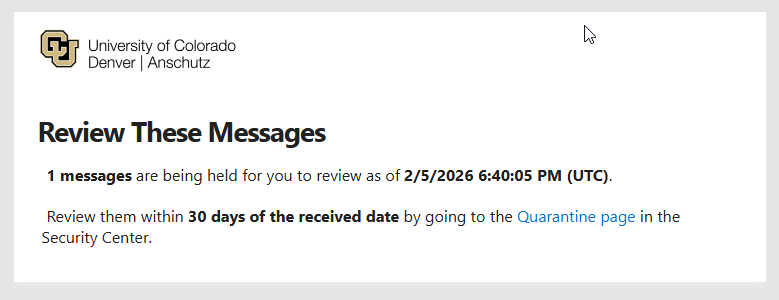
Microsoft Defender Quarantine is a feature integrated with Outlook to protect the university community from phishing emails and spam. It automatically holds suspicious emails in quarantine until reviewed or deleted. While the Microsoft Defender Quarantine feature has been successful in quarantining many phishing attempts, it does occasionally send legitimate emails to the quarantine folder.
Currently, when a suspicious email is sent to your university quarantine folder for review, Microsoft sends you a notification email with the options to “Review Message,” “Request Release,” or “Block Sender.” We heard your feedback on the current process to request the release of legitimate emails that were quarantined and have revised it to better meet your needs.
On February 18, 2026, the button to “Request Release” will be removed from the Microsoft notification email, and you will be directed to forward the notification from Microsoft with the Quarantined email listed that you would like released to the Service Desk. This change in the process ensures that your request has a faster response time and is properly tracked from initiation to resolution.
Frequently asked questions:
- What is the difference between Quarantine and Junk email?
- The Junk email folder is only intended for email that is considered “bulk” email (such as surveys or advertisements) while the Quarantine is intended to prevent harmful emails from ever reaching your inbox.
How do I access the portal to review Quarantine messages?
Go to https://security.microsoft.com/quarantine and login with your university email address and password to preview and delete Quarantined messages.
What are identity checks and why was a legitimate email sent to Quarantine?
Email identity checks are rules that verify an email is actually sent from the organization or system it claims to be from. They act as a "bouncer" for your email, ensuring only verified senders get through. Sometimes legitimate emails go to quarantine because the sender has configured their mailer in a way that fails these identity checks and is not verified.
Why do I need to request a release instead of having it automatically sent to my inbox?
If a message is determined to have a high probability of being harmful, it will require IT administrator intervention before being released to your inbox.
How do I preview an email in Quarantine?
- To preview an email in Quarantine, login with your university credentials to your Quarantine portal, select the email and click on the “Preview Message” button. We highly recommend previewing Quarantined emails before requesting their release.
For more FAQs and information, visit our website.
Tips for reviewing Quarantine messages:
- Do not request the release of emails that you are not expecting—these could be phishing attempts.
Do not request the release of emails that appear to be sent by you. These are spoofed and should remain in quarantine.
Emails sent using services like MailChimp or Constant Contact are filtered to Quarantine because they are not compliant with federal law and university policy. CU eComm is the only university-approved email tool.
Sometimes legitimate emails go to Quarantine because the sender has configured their mailer in a way that makes it look like the email is coming from an illegitimate source. If this is happening repeatedly with the same sender, open a Service Desk ticket to have the issue addressed wholistically instead of one email at a time.
Only use your university email for official university business; this will limit the number of unwanted advertisements and spam you receive.
Thank you for partnering with us in this process improvement. The quality of our service matters to us, and we appreciate the opportunity to better meet your needs.
.png?sfvrsn=a9cdeb4_1 "New service (1)")