Work with AI

Effectively understand, apply and use AI responsibly as CU Anschutz staff

Understanding AI as University Staff

Begin by browsing our resources on AI literacy, prompts, agents and more. 

1

Avoid Public Wi-Fi

Do not connect to a public wifi network or public hotspots with your university owned device while traveling, such as those found on airplanes, in airports, hotels, train and bus stations, and cafes. And, do not use public wifi to conduct other activities such as personal shopping, banking, or other sensitive activities.

Public wifi and networks are un-secure and unreliable. Connecting to a public network increases the risk of your device being attacked by a hacker, and could lead to identity theft. It is an easy way to cause a breach of data security and for sensitive information to be obtained by an unauthorized user.  Instead of connecting to public wifi, use the service provided by your cellular carrier.
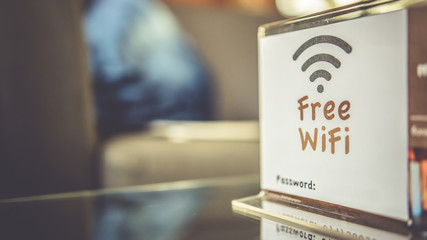
Image of stand on table with a card that reads
2

Encrypt Your Device and Protect Data

  • Prior to traveling, be sure that your device is encrypted and remove or reduce data that you store on your device to only that which is needed to perform job duties. Reducing the amount of data could also reduce the amount of risk associated with traveling with the device.
  • Encrypt files and data for additional protection. This will help to prevent viewing and use of the data in the event your device is accessed in an unauthorized manner, or by someone other than yourself.  It also protects the data from being used in violation of university policies and federal laws such as HIPAA and FERPA that restrict this data to specific use and require authorization. Note: Data reduction or removal should be done in accordance with university records retention policies and applicable federal, state, local laws, and contractual obligations.
  • Make a secure backup copy of your data before your travel and leave the copy in a safe university provided storage location. This will ensure that the copy is available if data are corrupted or become inaccessible while you travel.
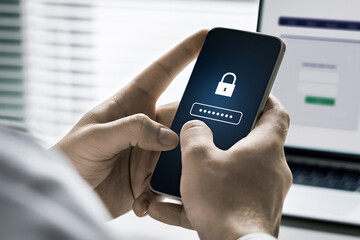
Photo of person holding mobile phone with a password lock on it
Learn More: University Records Retention Policies
3

Create and maintain strong passwords

  • Cybercriminals need a user's password in order to do the SIM-swapping.
  • Create unique and strong passwords using capital letters, numbers, and special characters.
  • Update your passwords regularly.
  • Do not use the same password for multiple accounts.
4

Protect Data

Do not download files or data to your university device while you travel.  Also, do not accept or use thumb drives or media from other sources as they may be infected with malware.
Digitally rendered broken chain with warning signs floating in a blurred background
5

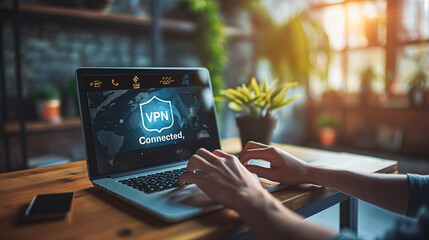
Install and Use the University VPN

Other countries have different web governance rules and restrictions. To ensure a safe and secure internet connection and that you will be able to access university resources, make sure the device you are traveling with has the VPN (called Global Protect) installed. Global Protect will secure your internet connection wherever you are.

Image of laptop on a desk with
Remote Access VPN Guide
6

Protect personal information

  • Make social media accounts private.
  • Be mindful of the information you share publicly.
  • Refrain from sharing personal information over text or email.
  • Do not share personal information with any unknown or suspicious recipients.
7

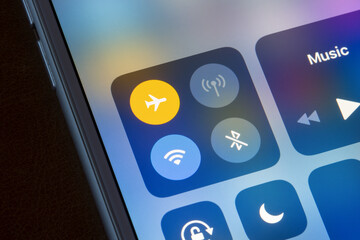
Disable Bluetooth

Disable Bluetooth on your device to ensure that it does not automatically connect to nearby devices or computers.  Re-enable Bluetooth only when you are certain that you are connecting to a safe device.
Bluetooth is seen disabled on iPhone with Wi-Fi switched on at the same time.
8

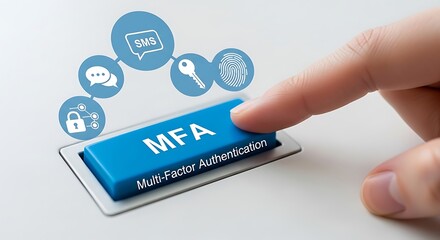
Use Duo Multi-Factor Authentication

In order to connect to Global Protect (VPN), ensure that your mobile service provider offers international service. You will need the service to connect to the VPN because the VPN uses multi-factor authentication, a safeguard to confirm your identity and verify you are the person signing into the university service.
Image of a keyboard button that says
DUO MFA Guide
9

Discuss security offerings with mobile carrier

  • Some mobile carriers are developing extra safety precautions such as a personal PIN or extra security questions. 
10

Maintain Strong Passwords

Ensure minimum requirements for passwords used to access university information systems are met. Strong passwords reduce the risk of unauthorized access to university technology resources and data.
11

Use Physical Safeguards

To prevent your university owned device from being stolen, implement the physical safeguards:

  • When traveling, make sure that your device is safely secured in your bag. If you don’t need to carry your device around with you make sure that your device is locked up either in the safe provided in your room or in luggage with a lock on it.
  • Never leave your device unattended.
  • Use a privacy screen to ensure that no one can shoulder surf or view the information on your monitor.
  • Never charge your device using publicly available charging cables or publicly available USB ports. Cables provided in public locations may be targeted by attackers to transfer the information that you send to their unauthorized networks or systems.
  • Do not use publicly accessible computers.
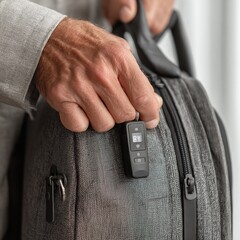
Image of backpack with a lock on it
13

Be aware of any suspicious activity on your phone or accounts

  • Unanticipated mobile service outages, glitches or disruptions.
  • Suspicious account notifications.
  • Sudden account restrictions.
  • Unauthorized network activities or transactions. 
  • Unauthorized password resets on your account.
  • Getting locked out of accounts.
14

Use University-Managed Devices

Using university-managed devices is vital for security and protecting university assets and data. University-managed devices, through the Endpoint Management service, will be compliant with university policies and national requirements.
Request Endpoint Management Support
15

Make Sure Your Software is Up to Date

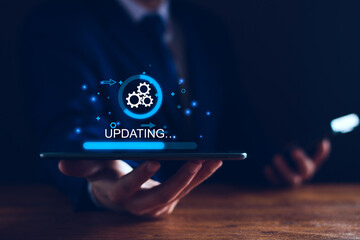
Check each application on your device to ensure that the latest patches and updates are applied and installed prior to travel.  Patch and update software that is not running the latest version or is not current.  Out-dated software can be hacked, which could allow an attacker to gain access to your device and its data.
Image of a software update (shown via gears and progress bar) happening on an ipad, behind held by a person's hands.
16

Ensure Data Security Controls Are Met

Remote work employees continue to be bound by university information security polices while working at an alternative worksite. Remote work employees will be expected to ensure the protection of proprietary university information accessible from their home office. Security safeguards and document retention policies should be applied at the level as they would when working on-site in order to protect such information from unauthorized disclosure, loss or damage. Steps include the use of locked file cabinets and desks, regular password maintenance, and any other measures appropriate for the job and the environment.
Learn More: Data & Document Security Controls
17

Use Microsoft Defender Software to Detect Malicious Code and Threats

Whether the university device is a loaner or your personal work device, make sure Microsoft Defender is installed on the computer before traveling. Run a full scan of your device before you leave to ensure that there is no malicious code or software that is designed to damage your computer, prevent it from operating appropriately, or allow unauthorized access to your device and data (malware) installed on the device.  Microsoft Defender identifies software vulnerabilities, provides antivirus and anti-phishing protection, and detects threats in a single, unified platform. The platform integrates with Microsoft 365 services such as Outlook, SharePoint, and OneDrive, offering robust security. One of the major capabilities of Microsoft Defender is the detection and response functionality which continuously protects computers from malicious activity. This program will help defend against threats while abroad.
Image of laptop with a shield icon on it and
Access Microsoft Defender
18

Review University Data Classification Standards for Document Privacy

Review the university's data classification on protected and private information for the best ways to keep information safe when working remotely. 
Review Data Classification Guidelines
19

Get Support

Have a question about any of these guidelines? Get remote work support now. 
Get Support
20

Prepare for International Security

Be prepared for your device to be searched or inspected when traveling to other countries.  It is also not uncommon to be questioned about your device.  Privacy laws in other countries are different as they do not adhere to protections such as those identified in HIPAA and FERPA.  Be aware of export controls laws, and do not access sensitive data even while using the VPN if you feel that your connections are not secure.
Image of the globe with light hotspots being shown in different cities
Learn More: ORC Guidance on Traveling Abroad with CU Device

Applying AI as University Staff

Next, explore how to apply university-approved AI tools to your daily workflows.

Microsoft 365 Copilot & Copilot Chat

Logo for Microsoft Copilot, showing a rainbow circle in the middle and microsoft app logos surrounding it in a circle


Zoom AI Companion

Blue background with text that reads

Adobe Firefly

Red background with white text that reads FI


Using AI Responsibly as University Staff

Lastly, ensure responsible AI use by learning security fundamentals, ethical guidelines and how to protect data.

Frequently Asked Questions

Get Help


Phone Support

303-724-4357 (4-HELP)
7:30 a.m. - 6 p.m., M - Th
7:30 a.m. - 5 p.m., Fri

Self Service Portal
Submit a ticket
Email the Service Desk
24/7 access to the Service Portal

Information Strategy and Services

CU Anschutz

Fitzsimons Building

13001 East 17th Place

Aurora, CO 80045


CMS Login